
Slow Computer? 7 Quick Fixes Before You Call a Perth Tech (2026)
Practical slow-computer troubleshooting for Perth home users and small businesses
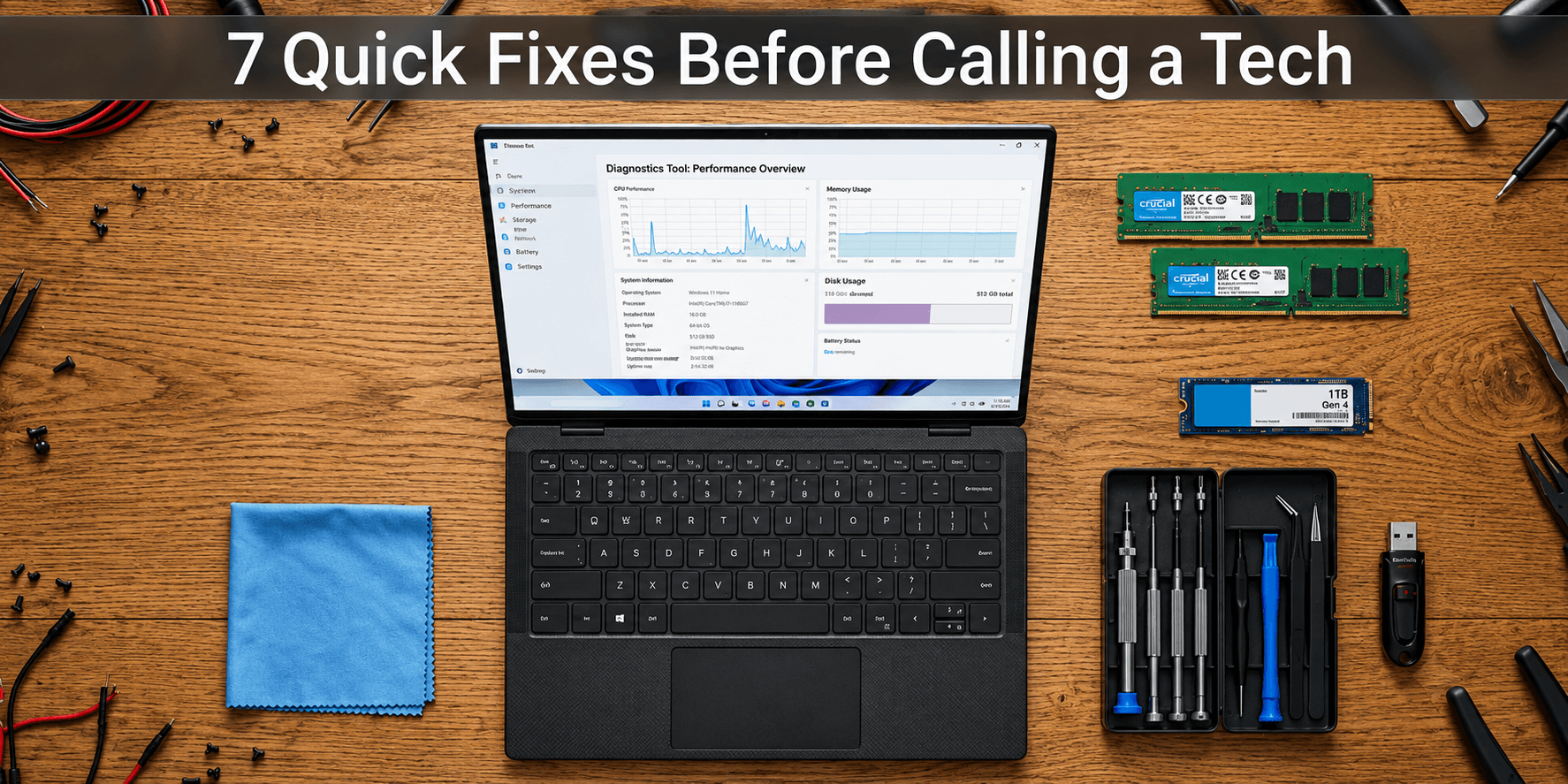
Computer Troubleshooting Services for the Home and Small Business in Perth.
Is your computer taking a long time to boot, hanging while loading software programs, or experiencing difficulty with everyday activities?
If your search involves “why is my computer so slow”, then you are not the only one. Slow computers are among the biggest issues that people, families, and even small businesses face in Perth.
The best part is that you might not have to purchase a brand-new computer after all. A couple of checks may be sufficient in some situations to make your computer faster.
Below are seven quick computer running slow fixes that you can implement before contacting a Perth IT professional.
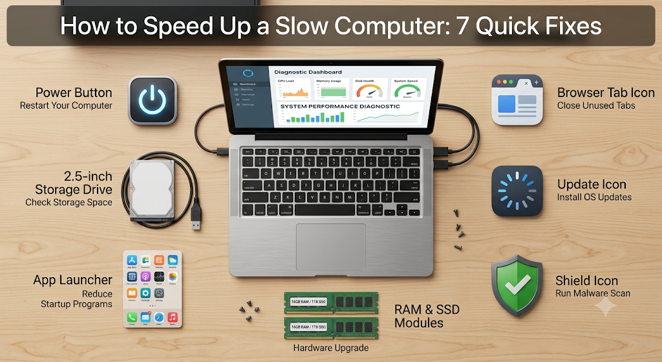
7 Quick Fixes Before You Call a Perth Tech
Before contacting a technician, it’s worth trying a few simple troubleshooting steps that can often resolve common performance issues. From restarting your computer and freeing up storage space to checking for malware and reducing unnecessary startup programs, these quick fixes may improve your system’s speed and save you time and money. If your computer is still running slowly after trying these tips, a professional Computer Repair service in Perth can diagnose and resolve the underlying issue.
1. Restart Your Computer
This is very basic; yet, there are a lot of problems that can be solved by simply rebooting the computer.
The computer has likely been running for several days or weeks, and applications or background processes may build up over time. Restarting the computer ends those processes and helps with temporary problems with the operating system.
Try this first: Click Start → Power → Restart and allow Windows to restart completely.
Do not shut down the laptop by simply closing the lid, as that might make your computer go to sleep mode instead of restarting the laptop.
In case your computer runs more efficiently after restarting, but starts to slow down gradually once again, there may be yet another problem which should be checked out while conducting slow computer troubleshooting.
2. Check How Much Storage Space You Have
An almost full hard drive or SSD can affect the performance of the system and can even affect Windows update installations.
There are built-in utilities in Windows like Storage Sense and Cleanup suggestions to help you delete unneeded temporary files.
On Windows 11: Go to Settings → System → Storage
Look at the available free space in your primary drive, most likely your C: drive. The Cleanup suggestions will help you find out about unnecessary temporary files, big or unwanted files, and programs that you don’t require anymore.
Important: You should not delete any file from Windows folders to create extra space. However, deleting the wrong files can result in malfunctioning of the system or application.
3. Reduce Unnecessary Startup Programs
Another issue that can lead to Windows PC slow performance includes having too many programs run automatically at startup.
The cloud storage utility software, messengers, game launchers, software update applications, and others might all run in the background.
Microsoft indicates that automatic startup software affects both the computer boot time and its general performance.
Check your startup applications: Go to Settings → Apps → Startup
Look through the list of these programs and disable automatic startup if you do not need the program at startup. For instance, there is no need to have any applications for music, meetings, or games starting up every time your computer starts Windows.
Tip: Exercise caution before turning off startup applications. If you are in doubt, avoid turning off any programs and consult an expert. Turning off the wrong application may give rise to more problems than solving any.
4. Close Programs and Browser Tabs You Don’t Need
Current browsers consume a lot of resources, particularly if they are used to open several tabs.
If you notice that your computer is running slow while using Chrome, Edge or another browser, close some unneeded tabs and run programs.
Task Manager will also be able to tell you which programs are consuming too many resources.
Press: Ctrl + Shift + Esc
Take a look at the Processes tab. Pay attention to applications that have a high CPU, memory, or disk usage.
If there’s one application that consumes too many resources, then something may be amiss.
5. Install Windows and Software Updates
Older software programs can cause issues with performance, compatibility, and security.
Check: Settings → Windows Update and install available updates.
It is also worth checking important applications such as:
- Web browsers
- Microsoft 365
- Antivirus/security software
- Business applications
- Device drivers
What about Windows 10? Microsoft has announced that it’s free software updates, support and security updates for Windows 10 version 1903 for business users and individuals will end on October 14, 2025. You should upgrade your device to Windows 11.
6. Check for Viruses or Malware
Often, the answer to “why is my computer so slow” lies in malware or other software that is secretly running in the background.
Malware and unwanted applications or browser add-ons use up system resources as well as create potential security threats.
Perform a security scan with your reliable antivirus or Windows Security.
You need to be extra careful in case you experience:
- Unusual pop-ups
- New browser extensions you did not install
- Unknown applications
- Browser redirects
- Very high CPU usage
- Unexpected advertisements
- The computer becoming slow immediately after installing unknown software
Security tip: In case of any suspicion about the presence of malware, refrain from providing confidential data, such as banking passwords, until the computer undergoes scanning.
7. Consider a Hardware Upgrade
If, after trying out the simple slow computer troubleshooting tips above, your computer is still too slow, then maybe there is no problem with the software itself.
Older computers might have difficulty handling new applications, large files, video conferencing, and even newer versions of Windows.
SSD upgrade
Reverting from an older mechanical hard drive to an SSD will enable your computer to start up quickly and speed up loading of applications.
RAM upgrade
Increasing your memory will be helpful when your system starts slowing down while multitasking.
Hardware replacement
In certain situations, getting rid of an old computer and buying a new one may end up being cheaper.
On the other hand, it is important to get the computer diagnosed by a professional to determine whether the problem can be fixed through upgrading.
When Should You Call a Perth IT Technician?
Troubleshooting may solve many issues related to performance. On the other hand, seeking professional assistance is advised in case of the repetitive nature of the problem or symptoms of more serious problems with the computer.
Consider getting professional assistance for computer repairs when:
- Your computer remains slow after basic troubleshooting
- Windows regularly freezes or crashes
- The hard drive or SSD appears to be failing
- You receive unusual error messages
- The computer is overheating
- You suspect malware or a security breach
- Your business computer is affecting productivity
- You are unsure whether to repair, upgrade or replace the device
A skilled professional will be able to conduct an overall check of the entire computer system, which includes hardware, software, storage, booting programs, and many other aspects.
How to Speed Up a Slow Computer: Your Instant Speed Checklist
- Restart the computer
- Free up storage space
- Reduce unnecessary startup programs
- Close unused applications and browser tabs
- Install Windows and software updates
- Run a malware/security scan
- Check whether your hardware needs an upgrade
The above steps illustrate the process of how to speed up a slow computer; however, it should be noted that these steps are not an alternative to a professional inspection of the issue where a problem is associated with faulty hardware components, software glitches, or a security issue.
Don’t Let a Slow Computer Slow You Down
A slow computer in Perth can waste many hours of your time every week, whether you work at home, run a small business, study, or just want to do your day-to-day things.
At The Tech Co, we offer on-site computer repair in Perth and IT support in Perth to assist our customers with identifying computer issues, optimizing computer performance, and determining the course of action to take – repair, upgrade or replace.
We offer assistance with computer repairs, laptop repairs, business IT support, Wi-Fi setup, networking and data backups from our local experts who will help restore your technology to full functionality in one week’s time – fast, friendly and upfront service.
Need help with a slow computer in Perth?
The Tech Co
0481 345 669
help@thetechco.com.au
www.thetechco.com.au
Local Perth IT support when you need it.